
for nonprofits
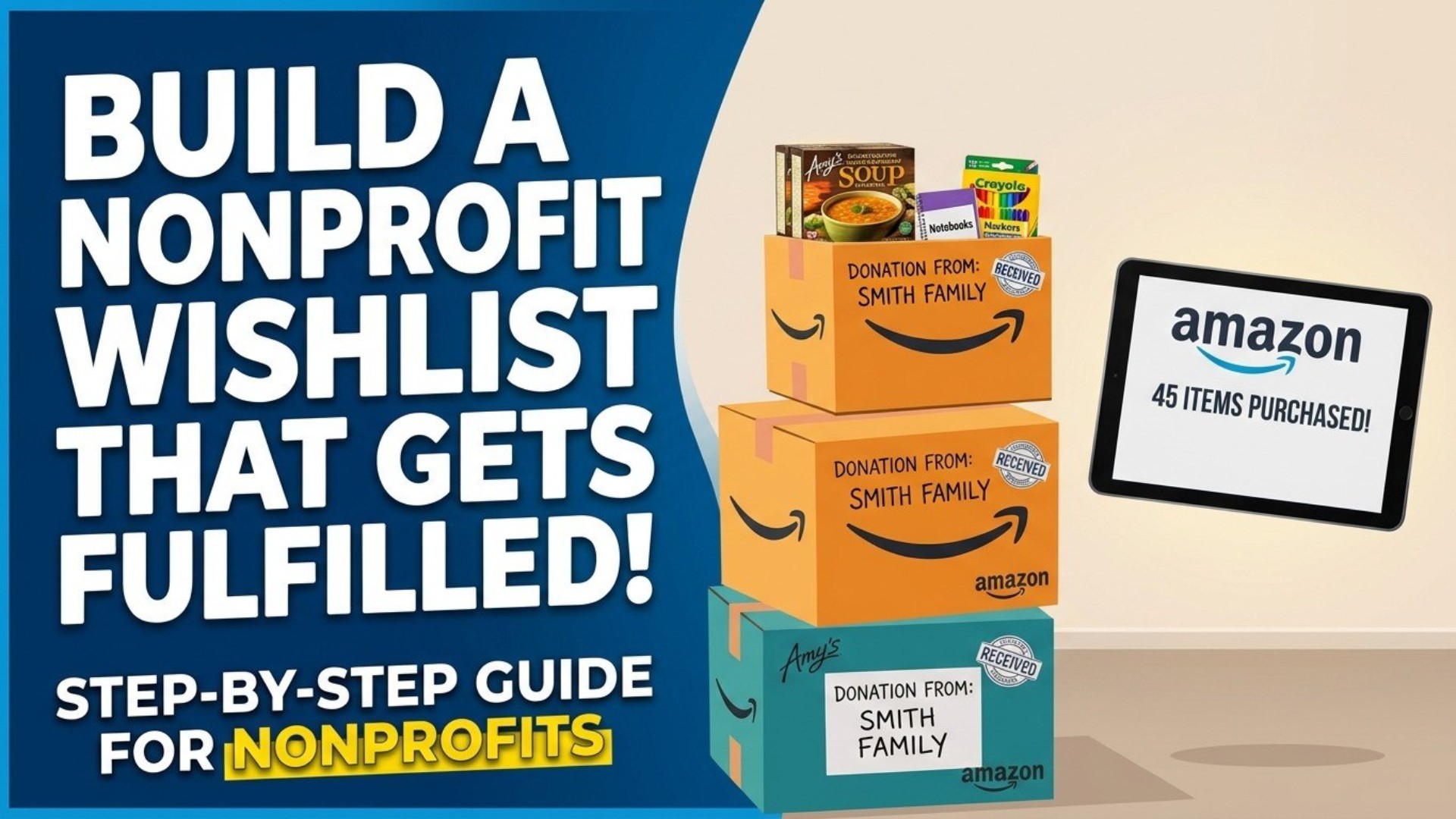
How to Build a Nonprofit Amazon Wishlist That Actually Gets Fulfilled
Most nonprofit wishlists sit empty. Here's why — and how to fix it.

Givelink Team |
How to Build a Nonprofit Amazon Wishlist That Actually Gets Fulfilled
Amazon wishlists are one of the most underutilized tools in nonprofit fundraising. They're free, familiar to donors, and connected to the world's largest product catalog. Yet most nonprofit wishlists sit mostly empty — discovered by no one, fulfilled by almost no one.
The problem isn't the tool. It's the strategy.
Here's how to build a nonprofit Amazon wishlist that donors actually find, trust, and use.
Why Most Nonprofit Amazon Wishlists Fail
Before building, it's worth understanding why most fail:
1. They're invisible. No SEO, no social promotion, no email mention. Donors don't know they exist.
2. They're generic. "Hygiene products" is not a product. Donors need to see exactly what to buy.
3. They're outdated. A wishlist with items already fulfilled — or worse, showing "0 needed" — signals disorganization.
4. They're disconnected from impact. Donors buy something, it ships, they never hear back. No reason to donate again.
5. They're hard to share. Amazon wishlist URLs are long and ugly. They don't work in Instagram bios.
Fix all five of these, and your wishlist becomes a reliable, self-serve donation channel.
Step 1: Set Up Your Wishlist Correctly
Account setup:
- Create a dedicated Amazon account for your nonprofit (nonprofit@yourorg.org)
- Use your official nonprofit name as the account name
- Add your shipping address — double-check it's your receiving address, not a personal home
Wishlist settings:
- Set to Public (not private)
- Enable "Third-party shipping address" so donors can send directly
- Add a description that explains your mission and how items will be used
Step 2: Add the Right Products
This is where most nonprofits go wrong. Here's the framework:
Be specific: ❌ "Canned food" ✅ "Amy's Organic Lentil Soup, Pack of 12"
Set quantities:
- Add "needed quantity" context in the product note (Amazon allows notes per item)
- Don't add more than 30–40 items total — a focused list converts better than an overwhelming one
Prioritize:
- Put highest-urgency items at the top
- Use "priority" tags if your platform supports it
- Update weekly to reflect current inventory
Include a range of price points:
- $5–15 items (impulse donors)
- $20–50 items (engaged donors)
- $50–100+ items (major donors)
Step 3: Make It Findable
A wishlist nobody can find is useless.
On your website:
- Add a "Donate Products" page with a direct wishlist link
- Put it in your navigation, not buried in a footer
- Use a URL shortener (bit.ly/yournamedonates) for shareable links
On social media:
- Pin a post with your wishlist link on all platforms
- Post a weekly "Most Needed Item" with a direct buy link
- Use Instagram's "link in bio" for wishlist access
In your email newsletter:
- Feature 1 item per newsletter with a "Buy for us" CTA
- Include the direct Amazon product link (not just the wishlist URL)
On Google:
- Publish a blog post titled "How to Donate to [Your Nonprofit Name]" targeting local search
Step 4: Close the Loop With Donors
This is the step that turns one-time buyers into long-term supporters.
When a donation arrives:
- Send a thank-you email within 24 hours
- Include a photo of the item (or similar items in use)
- Provide a tax receipt if applicable
- Invite them to follow your newsletter or social
Most nonprofits skip all four. The ones that do them consistently report dramatically higher repeat giving rates.
Step 5: Consider Upgrading to Givelink
Amazon wishlists are a great starting point. But they have real limitations:
- No automatic tax receipts
- No donor database
- No impact tracking
- No delivery confirmation notifications
- No integration with your CRM or email platform
Givelink is built on top of the Amazon product catalog — donors get the same familiar experience — but with full automation for receipts, tracking, impact documentation, and donor retention.
Most nonprofits start with an Amazon wishlist and migrate to Givelink within 3–6 months when the operational limitations become clear.
Move your wishlist to Givelink →
Wishlist Checklist
Before publishing, confirm:
- Public visibility enabled
- Correct shipping address verified
- 20–40 specific, named products listed
- Quantities set for each item
- Items organized by priority
- Price range covers $5 to $100+
- Direct link shortened and ready to share
- Website "Donate Products" page live
- Email welcome sequence mentions wishlist
- Social media posts scheduled
Frequently Asked Questions
Does our nonprofit need a paid Amazon account? No. A free Amazon account is sufficient for wishlist management.
Can donors claim a tax deduction for Amazon wishlist purchases? Yes, if your nonprofit is a 501(c)(3) and you provide written acknowledgment. Amazon itself does not generate tax receipts — you must do this separately.
How do we know when items from our wishlist are purchased? Amazon sends an email notification to the wishlist account when items are purchased. Givelink provides real-time delivery tracking.
Can we have multiple wishlists for different programs? Yes. Consider creating separate wishlists by program area (e.g., "Emergency Shelter Needs," "Youth Program Supplies").
See also
What is Givelink?
Learn from the founders:
Run a nonprofit? Get what you need.
Set your nonprofit up yourself in about 15 minutes. It's free, there's no contract, and you don't need to talk to anyone first.